TableSkim can run SQL on DuckDB, SQLite, Parquet and JSON files. A query result is shown as an extra sheet named SQL Result, which you can sort, filter, search, summarize and export like any other sheet.
Ctrl+E) opens the SQL window.
: opens the SQL prompt at the bottom of the screen.
| File | SQL dialect | Tables you can use |
|---|---|---|
| DuckDB database | DuckDB | Every table and view of the database |
| SQLite database | SQLite | Every table and view of the database |
| Parquet file | DuckDB | The file, by its name without the extension (sales.parquet → sales) |
| JSON file | DuckDB | The file, by its name without the extensions (events.jsonl.gz → events) |
Names that contain spaces, symbols or non-ASCII characters can be quoted with double quotes, for example SELECT * FROM "多言語サンプル".
Type the SQL and press Run (Ctrl+Enter) in the GUI, or Enter in the terminal UI.
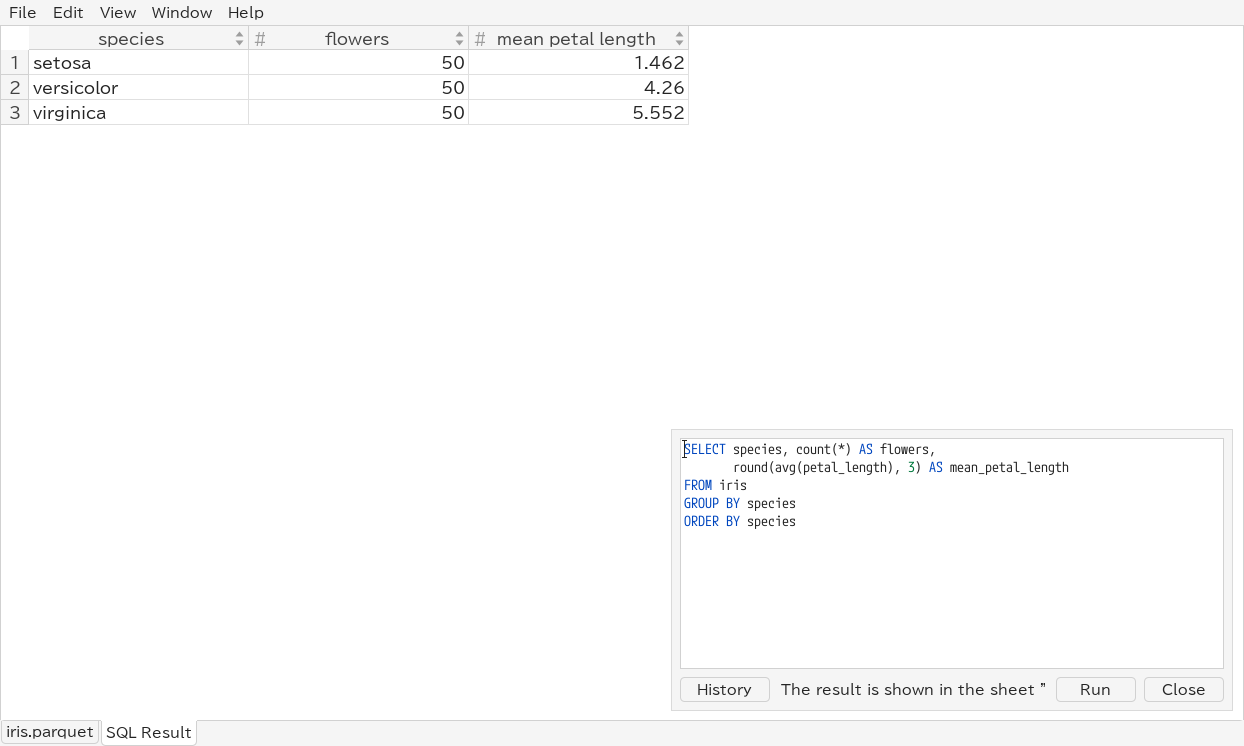
For this example, convert demo/examples/iris.csv with File → Convert to Parquet / DuckDB... (P in the TUI), then open iris.parquet. SQL is unavailable on the original CSV. The result has three species, each with 50 flowers and mean petal lengths of 1.462, 4.260 and 5.552 cm.
SELECT species, count(*) AS flowers,
       round(avg(petal_length), 3) AS mean_petal_length
FROM iris
GROUP BY species
ORDER BY species
SELECT, WITH, VALUES, ...) is shown in the SQL Result sheet, which the window switches to. Running another query replaces it.
Files are opened read-only: SQL cannot change the database or the file. SQL allows queries and temporary table/view operations. You can create, update and drop temporary tables and views, which disappear when the window is closed:
CREATE TEMP TABLE setosa AS SELECT * FROM iris WHERE species = 'setosa';
Writing external files (COPY ... TO, EXPORT, VACUUM INTO), attaching other databases, loading extensions and changing engine settings through SQL are blocked. To save a query result, use Export View... (w in the terminal UI).
Every query you run is saved in a history that is shared by all windows and by later sessions.
Ctrl+Up / Ctrl+Down in the editor step through them.
Up / Down in the SQL prompt.
The history is stored in a file named sql_history:
| Platform | Location |
|---|---|
| Linux | $XDG_STATE_HOME/tableskim/ (usually ~/.local/state/tableskim/) |
| macOS | ~/Library/Application Support/TableSkim/ |
| Windows | %APPDATA%\TableSkim\ |
The Microsoft Store version keeps it in its own folder, %LOCALAPPDATA%\Packages\<package name>\LocalCache\Roaming\TableSkim\, which Windows removes when the app is uninstalled.
Press Tab to complete the word before the cursor: table and view names, column names, and SQL keywords. After name. it offers the columns of that table, and it knows aliases given in FROM and JOIN, so SELECT i. completes the columns of iris in SELECT i. FROM iris AS i.
SELECT * FROM table WHERE ... is often enough; refine the result with the Filter pane.
P / D in the terminal UI), then open the converted file.